From render to published
mayorawesome.com isn’t a video host - it’s a show directory that embeds your YouTube uploads. So “publishing” is a short chain: get the video onto YouTube, tell Studio which upload it is (so it can push your translated captions), and sync the episode’s text and video id to this site. Here’s the whole path, and the Google setup that lets an agent run it for you.
The end-to-end workflow
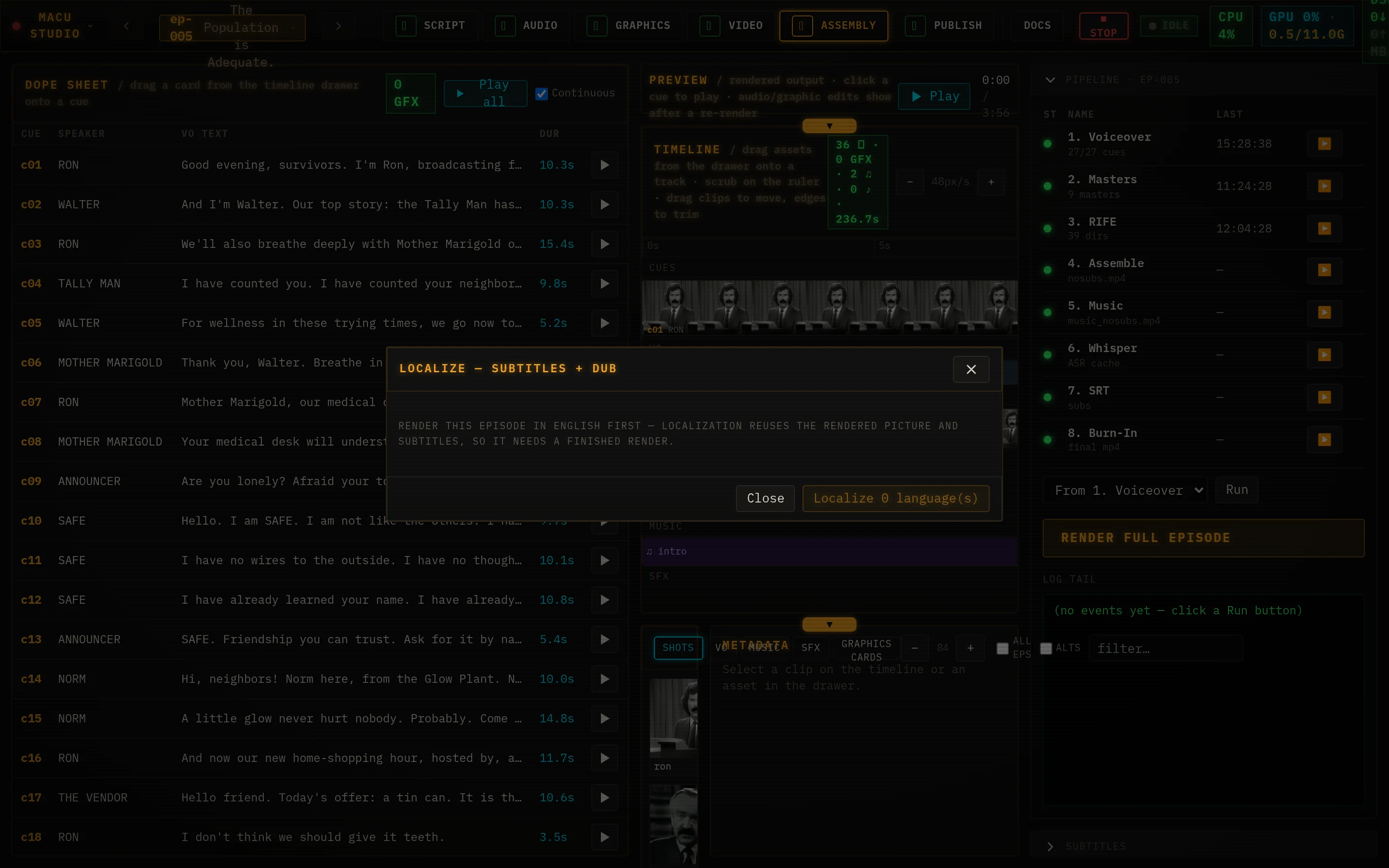
- Render the episode (Assembly → Render full episode). You now have final/<slug>.mp4 and a .srt per language.
- Upload to YouTube, unlisted. This is the one step that puts the actual video file somewhere public; Studio doesn’t host it.
- Match it in Studio’s YouTube tab.Studio lists your channel’s uploads and fuzzy-matches them to your episodes by title, so it knows which video id is which.
- Push caption tracks. Studio uploads your .srt tracks (English plus any Localizelanguages) to the matched video, replacing its own prior tracks and leaving YouTube’s auto-captions alone.
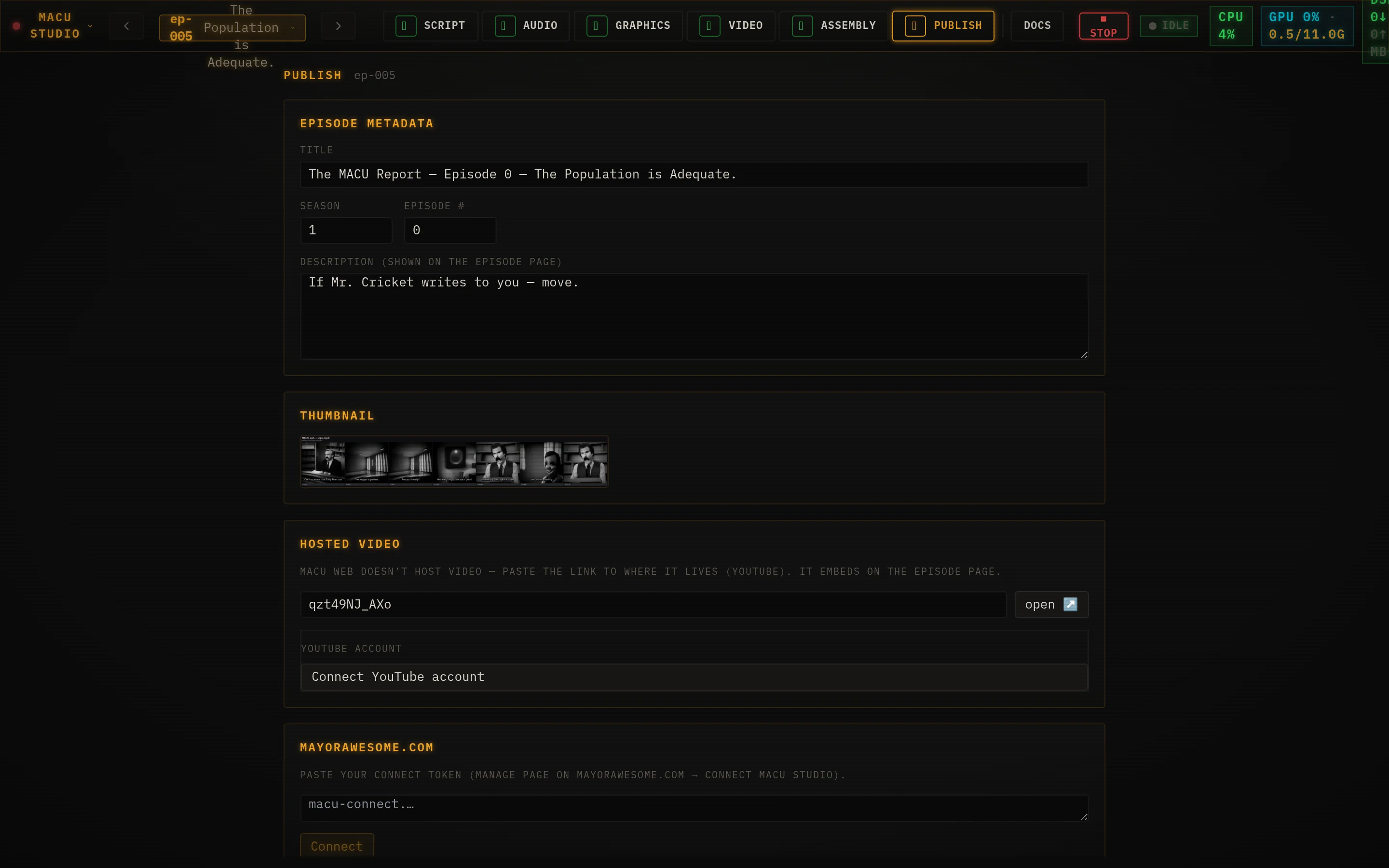
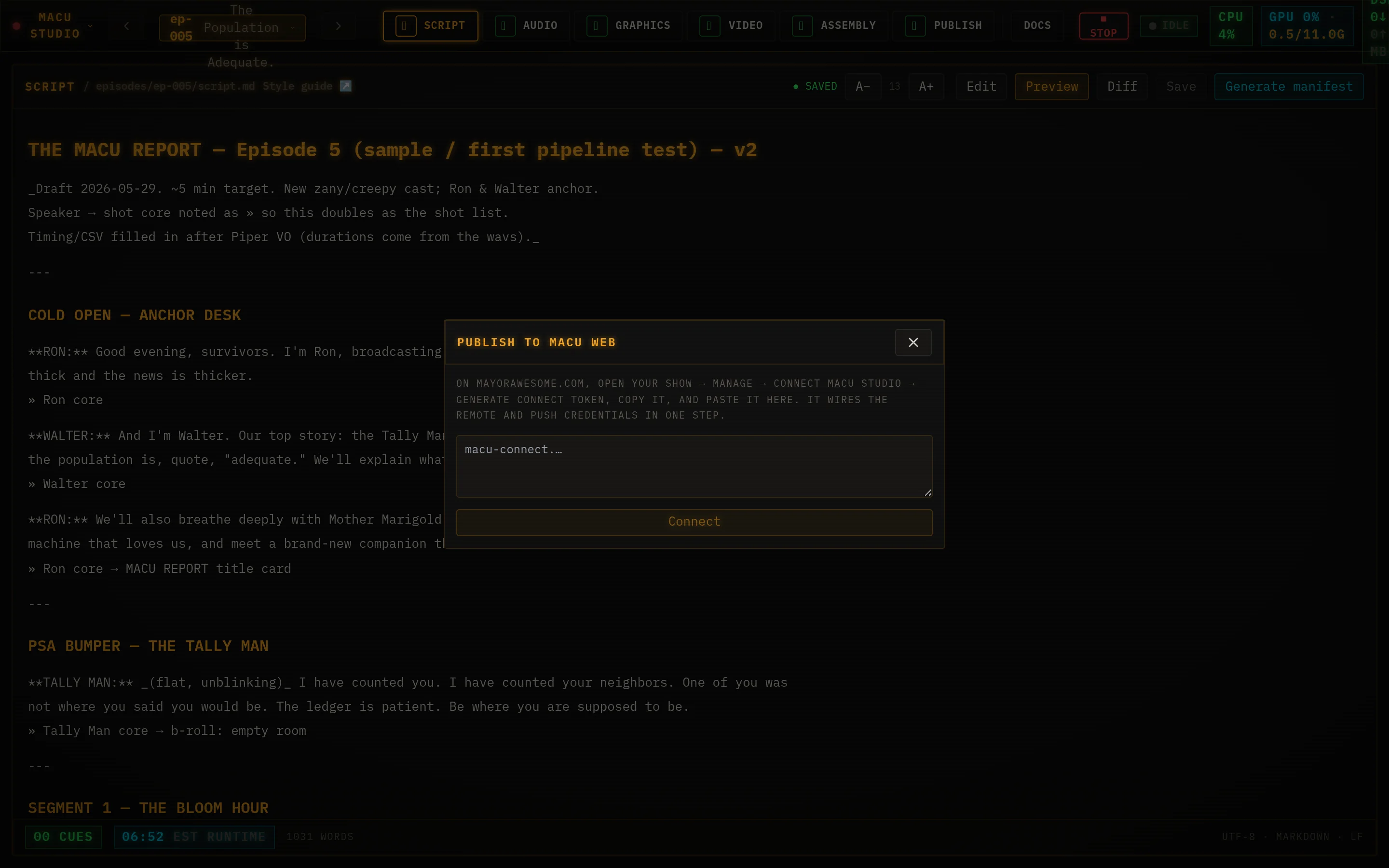
- Publish to MACU Web.Studio’s Publish tab pushes the episode’s title, description, and the YouTube video id here; the public page embeds the video (and uses its thumbnail). See the connect-to-the-web steps in the guide.
The Google API credentials
The matching and caption-push steps talk to YouTube’s own API, so you need a Google Cloud project with the YouTube Data API v3 enabled. Two kinds of credential do two different jobs:
- An API key- read-only. Studio uses it to list your channel’s uploads and match them to episodes. No sign-in flow; just a key.
- An OAuth client - write access, for uploading caption tracks. Studio uses the device flow (no web redirect): it shows you a short code, you approve it on google.com/device in any browser, and it stores a refresh token. The scope is youtube.force-ssl.
The setup, once, in the Google Cloud console:
- Create (or pick) a project and enable the YouTube Data API v3 - getting-started guide ↗.
- Create an API key under APIs & Services → Credentials for the read/match side.
- Configure the OAuth consent screen, then create an OAuth client ID of type TV and Limited Input device for the caption-upload device flow - device-flow docs ↗.
Studio keeps these under ~/.config/macu-studio/: the API key + channel id in youtube.json, and the OAuth client + refresh token in youtube_oauth.json (mode 600). You connect from the YouTube tab - click connect, approve the device code, and it shows “connected as <channel>.”
The hands-off path
If you’ve connected a Claude Code agent, the upload itself becomes one sentence. The macu-youtubeskill drives an OAuth-backed YouTube upload of a rendered episode - “upload ep-016 to YouTube, unlisted” - and the broader macu-publish flow chains the whole thing: render → upload (unlisted) → record the video id → publish the bundle here.
- It is unlisted by default and never makes a video public on its own - going public is always an explicit, per-video call you make.
- The two owner-only steps that have no API - creating a brand-new show on this site and flipping a show’s visibility to Public - it pauses and asks you to do; everything else it runs.
This is the same point as the agent page: the last mile is text and API calls, so it’s exactly the kind of repetitive, exacting work that’s better handed to the agent than clicked through by hand.